Virtual staging · Kitchen
Virtual staging for kitchens
Kitchens already have their units, so staging is about life: a table to eat at, stools at the counter, a few objects that make the space feel used and warm.
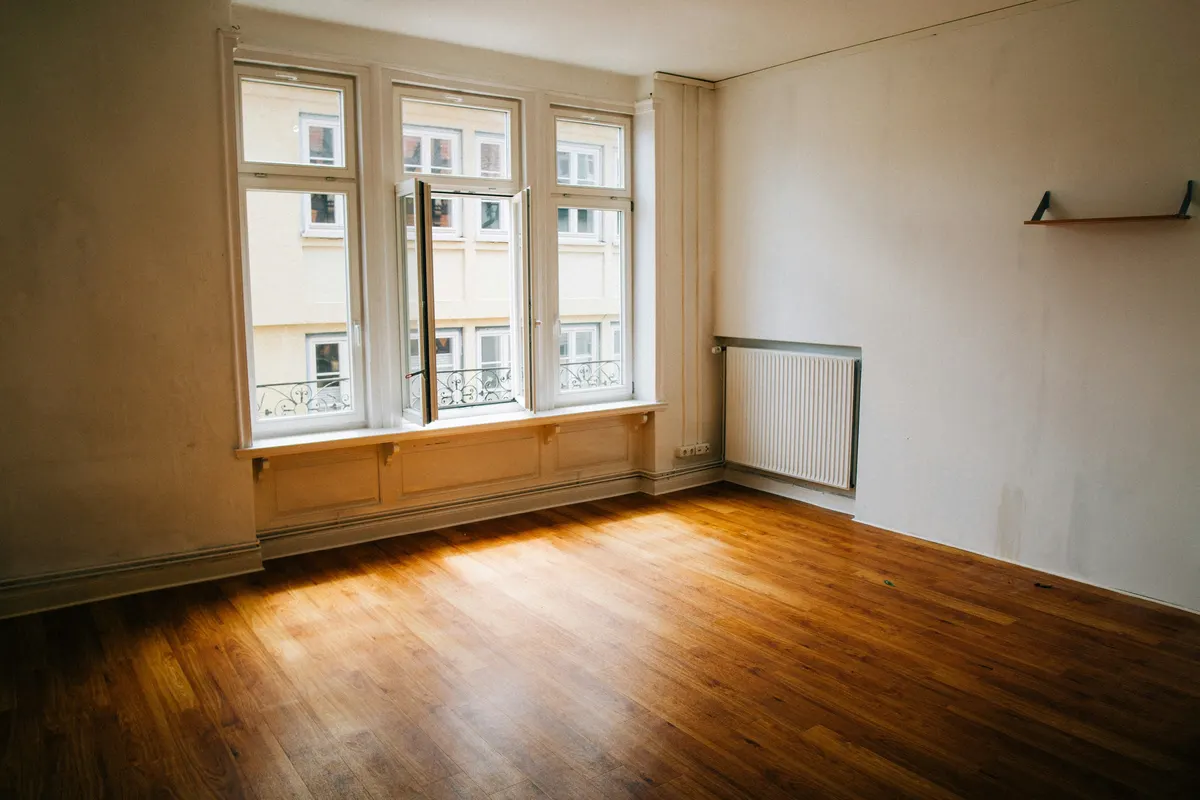
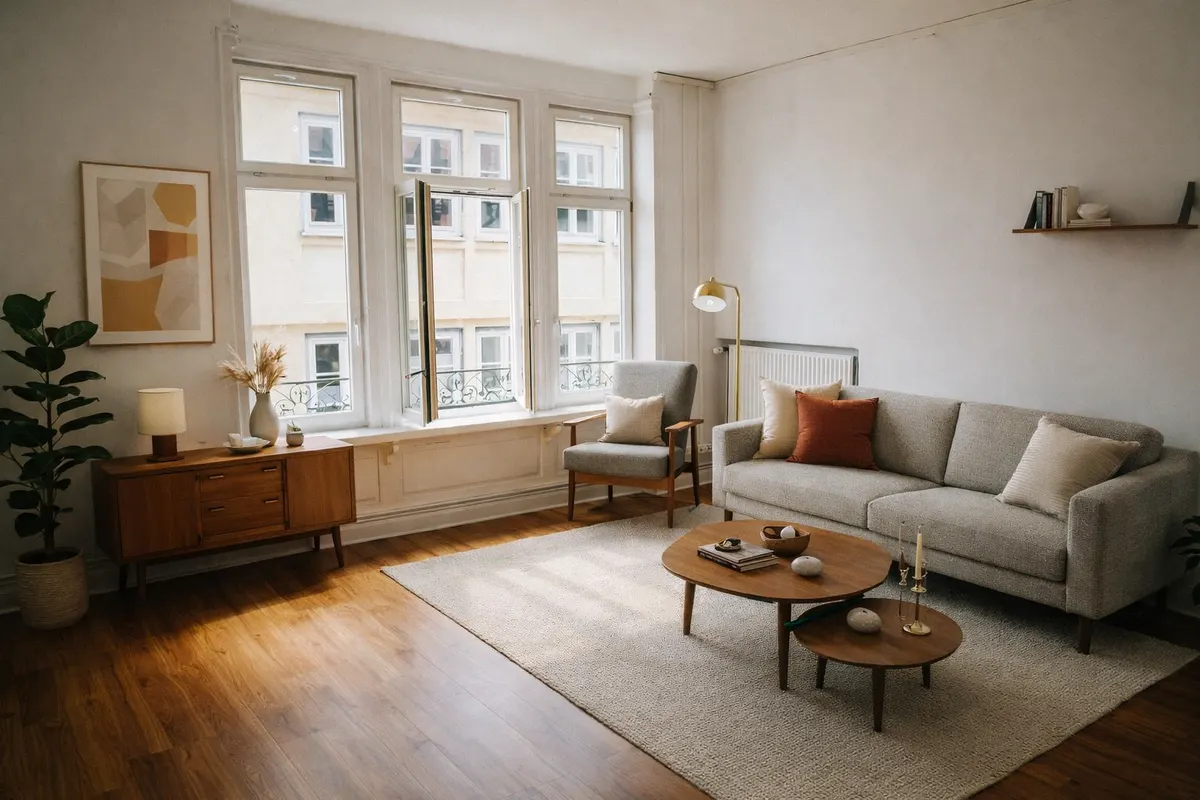
Your render is an AI image based on your own photo: check it before you use it.
What staging adds
- A dining table or counter stools
- Plants, bowls and a few objects on the counter
- Pendant or table lighting
- Textiles that soften the hard surfaces
Shoot it right
- Shoot from the entrance so the counters lead the eye
- Clear the counters completely before shooting
- Avoid shooting straight into a bright window
How it works
- 1Upload the photoJPEG, PNG or WebP up to 10 MB, taken from a corner with the lights on.
- 2Pick “Kitchen” and a styleAdd a short note if you want something specific, like a reading corner.
- 3Compare and downloadSlide between before and after; downloads can carry a “Virtually staged” label.
Six styles to choose from
- Scandinavianlight wood, white, soft textiles
- Japandilow furniture, natural tones, calm
- Mid-century modernwalnut, tapered legs, mustard
- Industrialmetal, leather, exposed materials
- Coastallinen, blues, light and airy
- Minimalistfew pieces, clean lines
Questions
Will it replace my cabinets?
It's instructed to keep the room's structure and add furniture and decor, not to renovate. If a render changes fixed elements, try again or pick another photo.
Can I stage a kitchen that opens onto a living room?
Yes: choose the room type that covers most of the photo, and add a note like “dining table between the kitchen and the sofa”.
Do I have to say the photo is virtually staged?
Yes. A staged photo shows what the room could look like, not what it contains. Most listing platforms and local rules expect you to disclose it, so every RenderRoom download can carry a “Virtually staged” label. Never use staging to hide defects.