Virtual staging · Living room
Virtual staging for living rooms
The living room is usually the first photo of a listing. Empty, it reads as a box; staged, it shows where the sofa goes, how the light falls and how big the space really is.
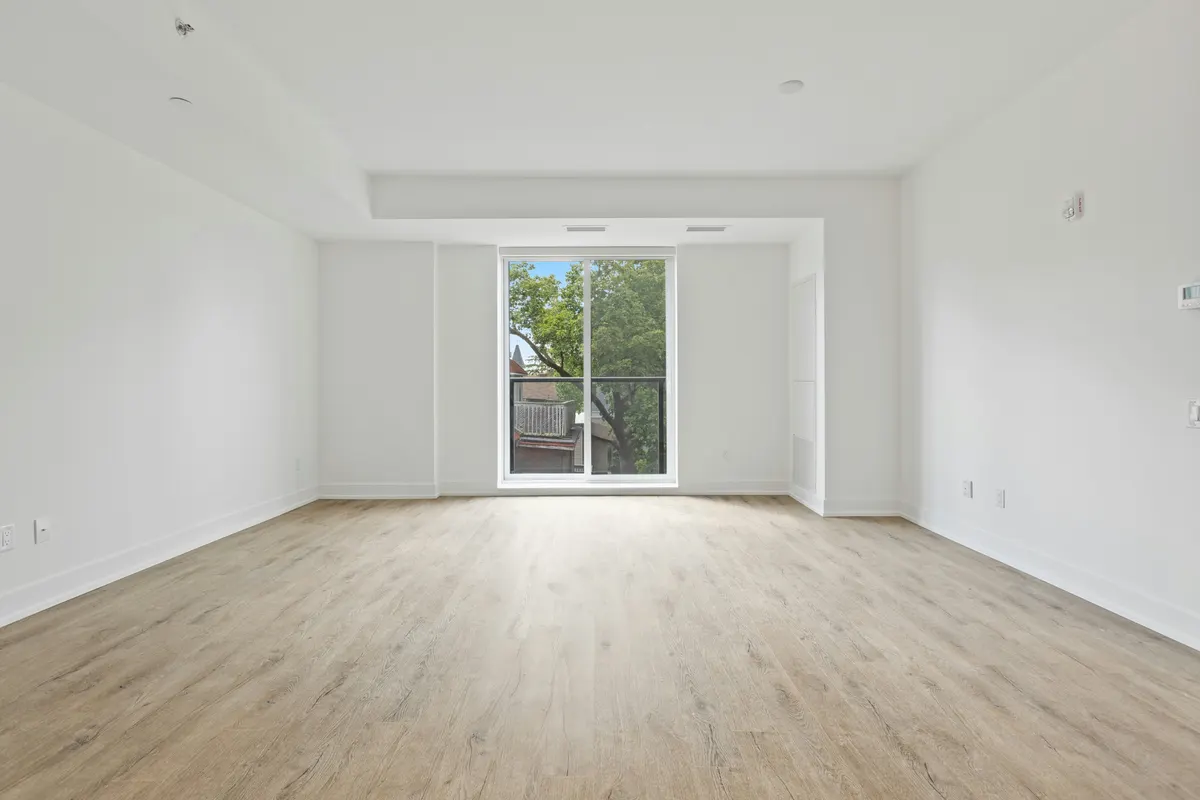
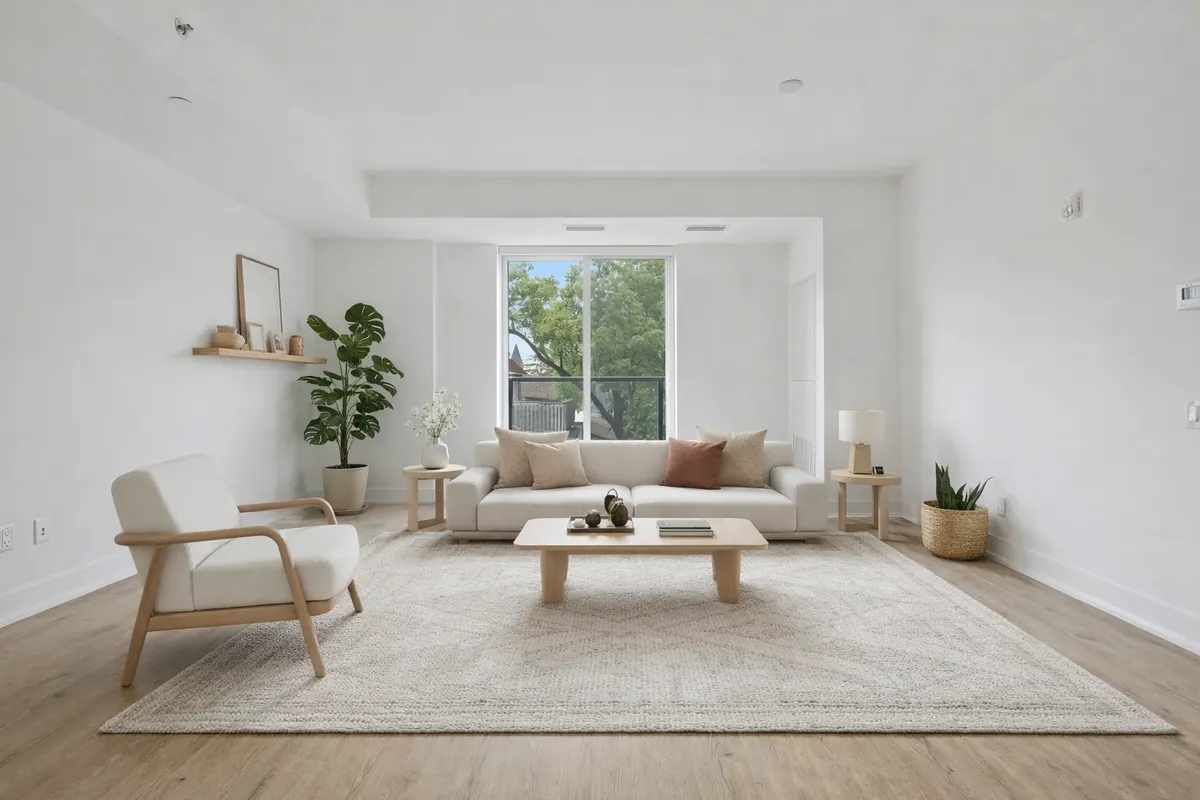
Your render is an AI image based on your own photo: check it before you use it.
What staging adds
- A sofa and armchair sized to the room
- A rug that anchors the seating area
- Floor lamp, plants and wall art
- A coffee table that shows the circulation space
Shoot it right
- Shoot from a corner to show two walls and the window
- Turn the lights on and open the curtains
- Keep the camera at chest height and level
How it works
- 1Upload the photoJPEG, PNG or WebP up to 10 MB, taken from a corner with the lights on.
- 2Pick “Living room” and a styleAdd a short note if you want something specific, like a reading corner.
- 3Compare and downloadSlide between before and after; downloads can carry a “Virtually staged” label.
Six styles to choose from
- Scandinavianlight wood, white, soft textiles
- Japandilow furniture, natural tones, calm
- Mid-century modernwalnut, tapered legs, mustard
- Industrialmetal, leather, exposed materials
- Coastallinen, blues, light and airy
- Minimalistfew pieces, clean lines
Questions
Will it change my walls or windows?
It's instructed to keep the walls, windows and floor and only add furniture and decor. Check every render before you use it: it's an AI image.
Which style works best for a living room?
Scandinavian and Japandi feel bright and calm; Mid-century modern adds warmth; Minimalist keeps the space looking large. Try two styles and keep the one that suits the buyer you have in mind.
Do I have to say the photo is virtually staged?
Yes. A staged photo shows what the room could look like, not what it contains. Most listing platforms and local rules expect you to disclose it, so every RenderRoom download can carry a “Virtually staged” label. Never use staging to hide defects.